Tasks
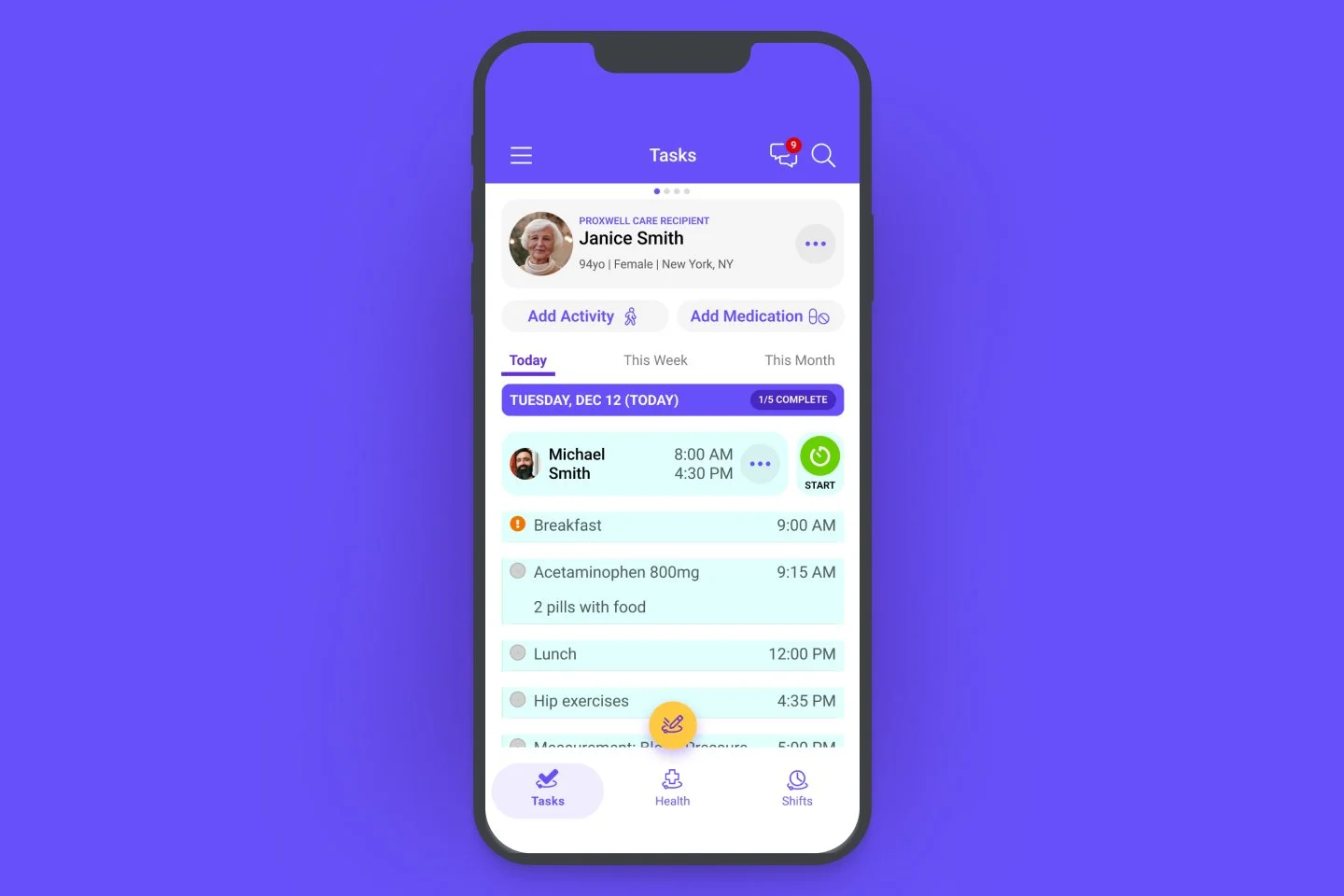
Tasks are at the core of Proxwell and the best way to manage recurring health and wellness activities, events, and medications for yourself or a Care Recipient. All tasks are logged and tracked so you know exactly when tasks are scheduled and completed.
Adding Activity & Medications
Tasks can be in the form of activities (such as meals, activities of daily living (ADL)) and exercise) or scheduled or as-needed medications. These can be added in a couple of ways:
Directly from the Tasks view
Just tap the respective button near the top of the screen — Add Activity or Add Medication
From the Care Recipient details view (accessed by tapping on the Proxwell Care Recipient ‘card’ at the top of the screen
Navigate to ‘Activities’ and tap the ‘+ Add’ button at the top of the list
The Activities list shows all of the recurring activity types for a Care Recipient while tasks are the unique scheduled instances of those activities
Adding Activities
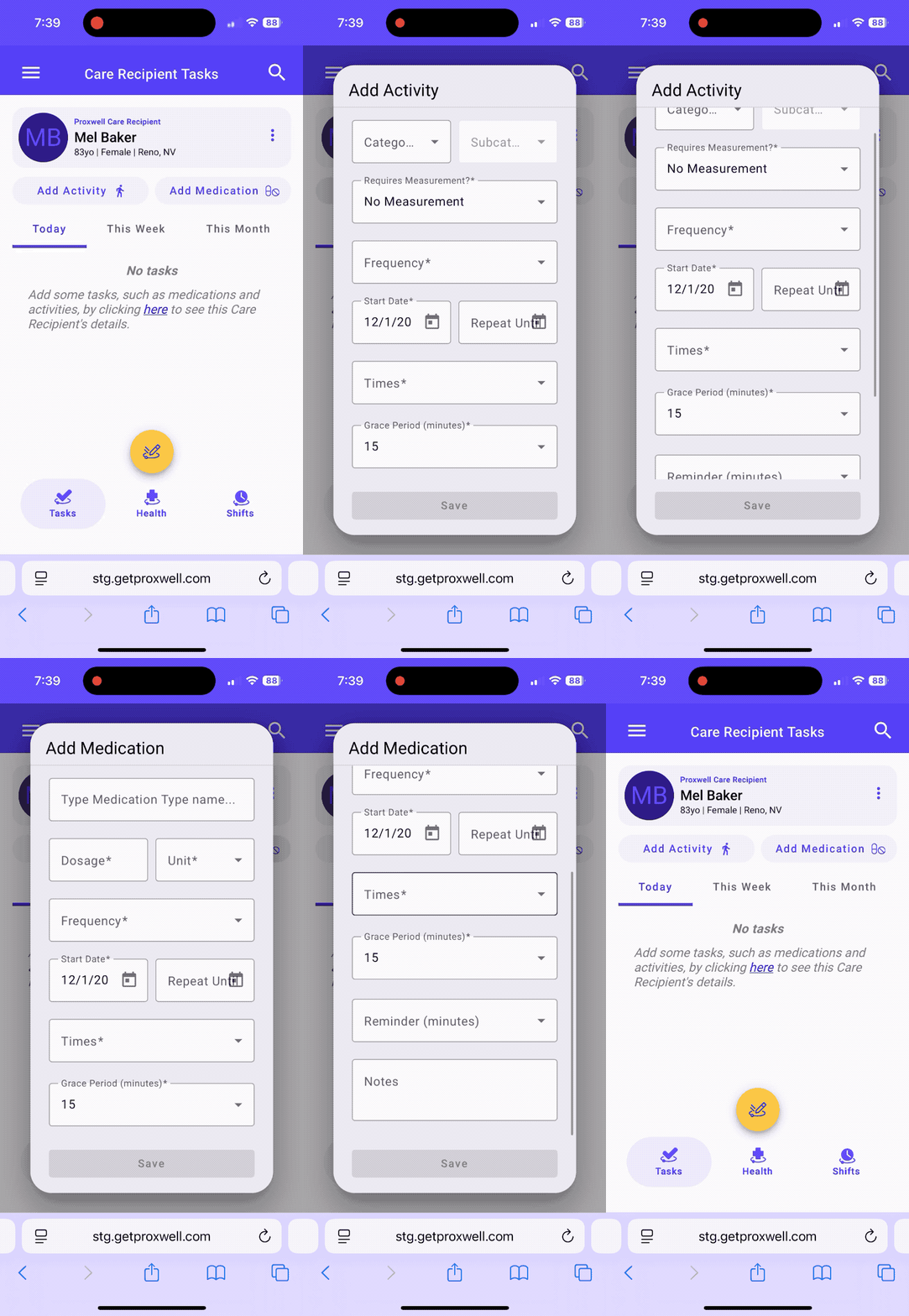
When adding a new Activity there are a number of options available to customize the details
Category and Subcategory - allow you to define the type of activity or task
Requires Measurement? - add a measurement such as blood pressure, steps, or weight
Frequency - this lets you set how often the task or activity should be performed; in other words how often the task repeats
Times - lets you set the time(s) of day for a given task or activity
Start and End Dates - this lets you schedule tasks to start in the future and end at a particular date. This could be handy for something like a medication regimen that starts next week and lasts for 30 days.
If an end date is not set, tasks will repeat forever until you change or delete them
Grace Minutes - This is an optional, flexible time window during which a completed task is still considered ‘on-time.’
This is perfect for tasks that need a bit of flexibility such as meal times
Reminders - are optional nudges to remind you of an upcoming task
Reminders are handy for those ‘once in a while’ types of activities like an upcoming doctor visit
Adding Medications
When adding a new Medication there are a number of options available to customize the details
Medication Name - search for medications by name
Dosage & Unit - select the dosage and the unit of measurement (oz, tablet, injection, ml, etc)
Frequency - this lets you set how often the medication should be administered
Times - lets you set the time(s) of day for a given medication
Start and End Dates - this lets you schedule medications to start in the future and end at a particular date. This could be handy for something like a medication regimen that starts next week and lasts for 30 days.
If an end date is not set, tasks will repeat forever until you change or delete them
Grace Minutes - This is an optional, flexible time window during which a completed task is still considered ‘on-time.’
This is perfect for tasks that need a bit of flexibility such as meal times
Reminders - are optional nudges to remind you of an upcoming task
Reminders are handy for those ‘once in a while’ types of activities like an upcoming doctor visit